


Best Homepage Sections for Flawless Store
Sep 8, 2026 · 6 min read · By Ascend Themes
A strong homepage does not need every section in the theme editor. It needs a clear path. Introduce your store, help visitors find the right products, explain what makes them useful, and give shoppers a reason to trust you.
In Flawless, each section can support one of these jobs. Choose the section that fits your message.
Your starting point
Start with a Slide show and one way to shop, then add the sections that answer the next question.
👋 1. Introduce the store
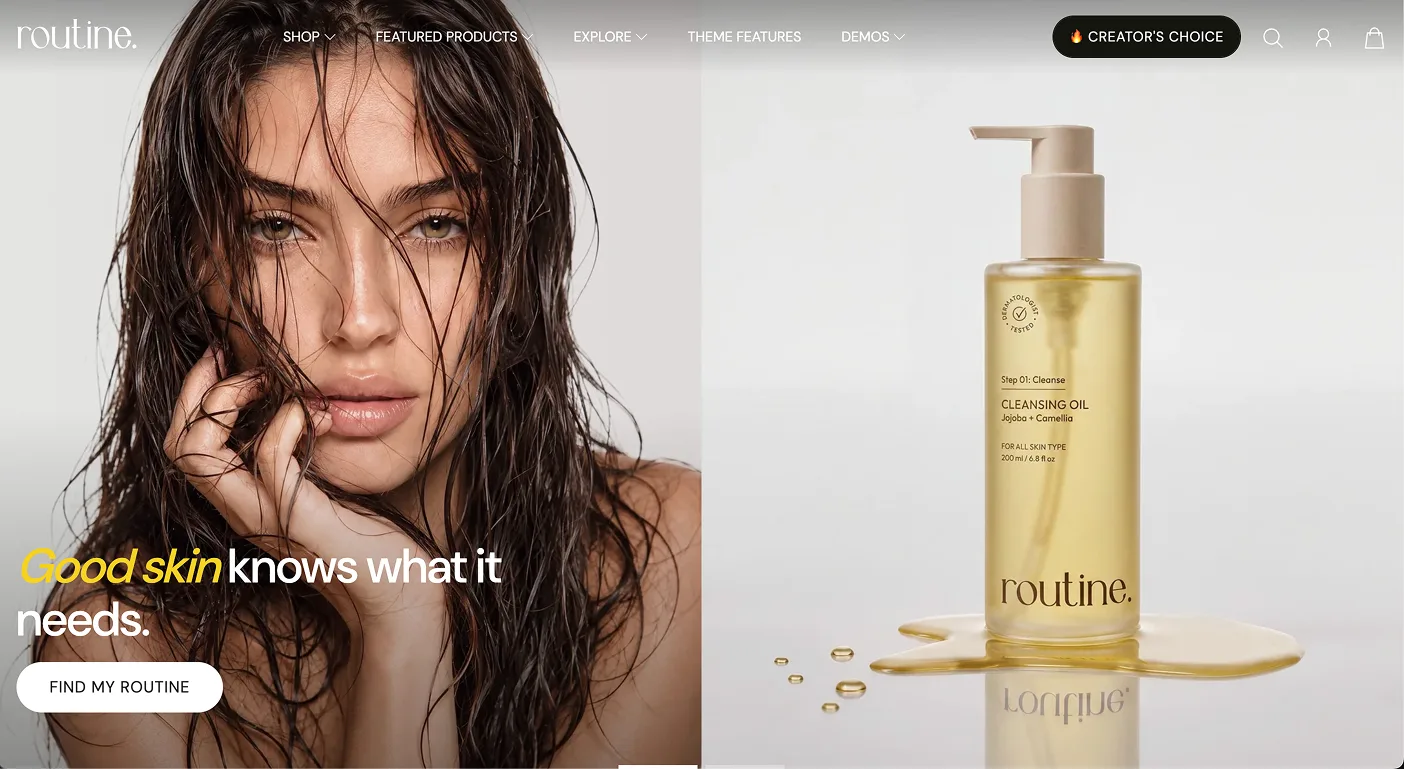
The Slide show is usually the first section visitors see. Use it to answer one question quickly: what does your store sell?
Choose one strong image, one short headline, and one button. Keep the message focused so shoppers understand it without waiting for another slide. Link the button to the collection or product shown in the image.
Example:
Everyday wellness, made simple
Find journals, routines, and small habits to help you feel more organised.
Button: Explore wellness
This approach also works for a beauty routine, a new fashion collection, a seasonal food range, or a signature jewellery piece. Choose an image that supports the message and check that the text stays readable on mobile. See theSlide show settings.
🛍 2. Help shoppers browse products
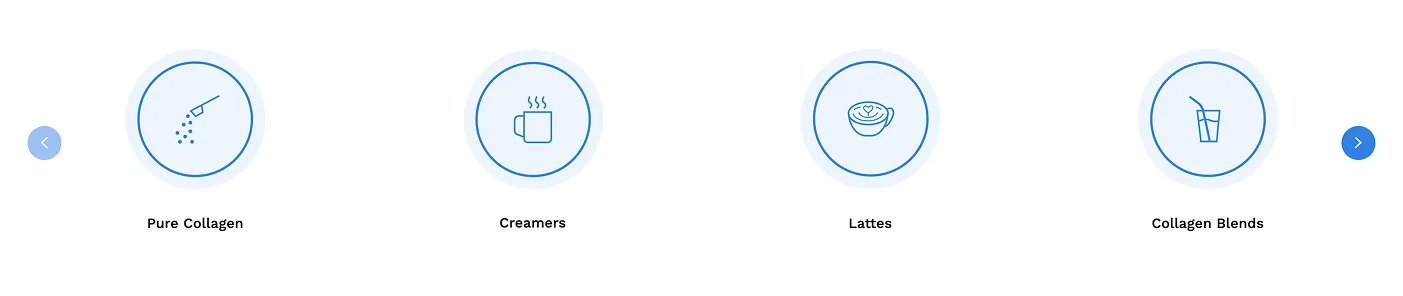
Use Collection list when visitors need to choose a category before they choose a product. It works well for stores with several clear groups.
Examples:
Beauty: Cleansers · Moisturisers · Starter Kits
Fashion: Dresses · Knitwear · Accessories
Accessories and jewellery: Bags · Necklaces · Earrings
Use names shoppers already understand. A card titled “Necklaces” should lead to necklaces, and “Starter Kits” should contain a useful starting selection. Place Collection list soon after the opening section so visitors can choose a direction early.
✨ Bring a focused product range into view
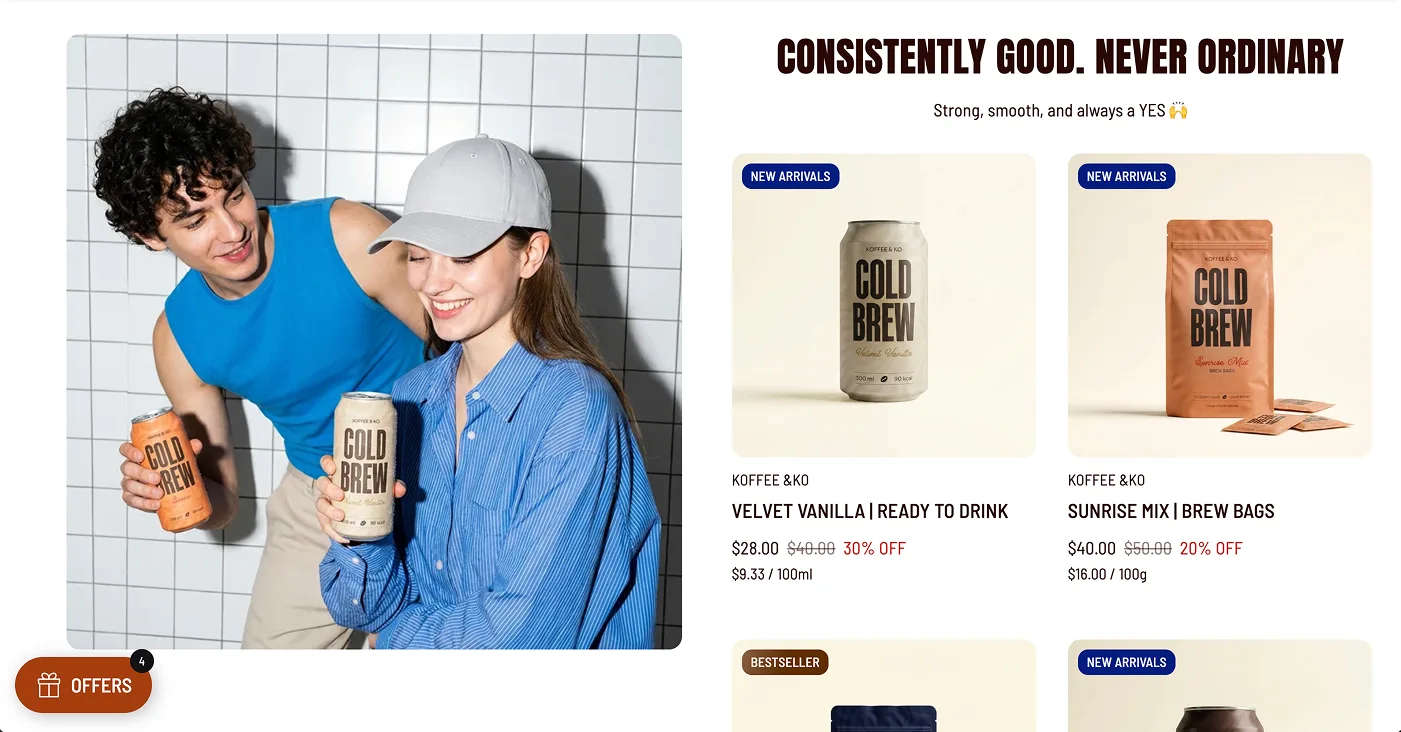
Featured collection helps shoppers move from browsing to comparing products. Use it for a group with a clear reason to appear together, such as New Arrivals, Summer Essentials, or Bestsellers.
Examples:
Food and drinks: Breakfast blends or gift boxes
Beauty: A simple evening skincare routine
Fashion: New linen pieces for the current season
Collection list helps visitors choose a category. Featured collection helps them explore products inside a category. Use both when they have different jobs, and add a link to view the full collection.
👗 Lookbook or Shoppable Image: show products in context
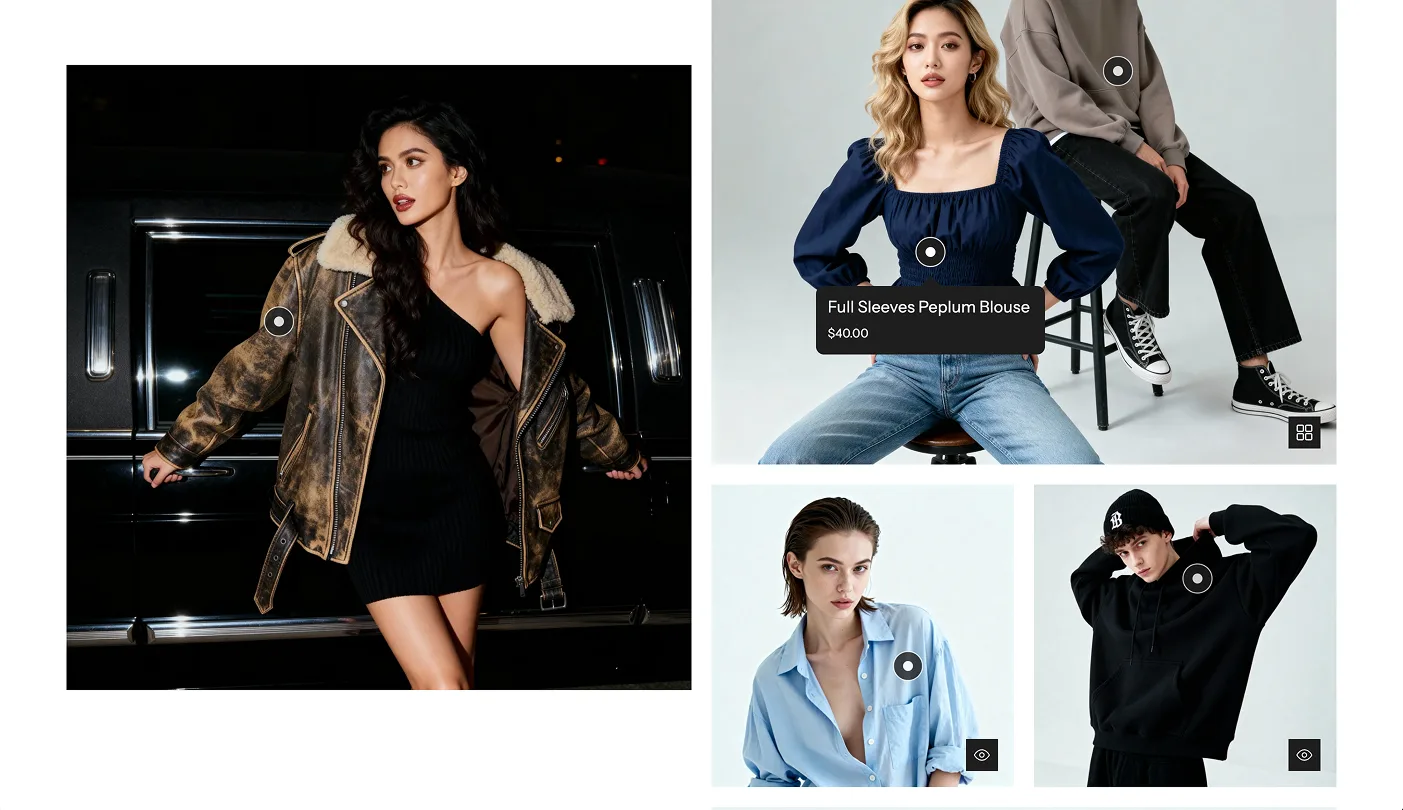
These sections help visitors imagine how your products fit into real life. Use a Lookbook for a series of styled images. Use a Shoppable Image when one scene can show several products together.
Examples:
Fashion: Build a seasonal edit around one outfit or colour story.
Accessories and jewellery: Show a necklace, bag, and earrings styled together.
Beauty: Show the products in a simple morning or evening routine.
Food and drinks: Show a drink being served with the products used to make it.
Wellness: Show a journal, supplements, or routine products in an everyday setting.
Keep the scene easy to understand. Use one short headline and link each product to its correct page when the section supports product hotspots. Avoid adding unrelated items just to fill the image.
Place this section after Collection list or Featured collection, once visitors have seen the product groups. It can also sit near the top for a fashion or accessories store where the visual story is the main reason to browse.
💡 3. Explain benefits and build trust
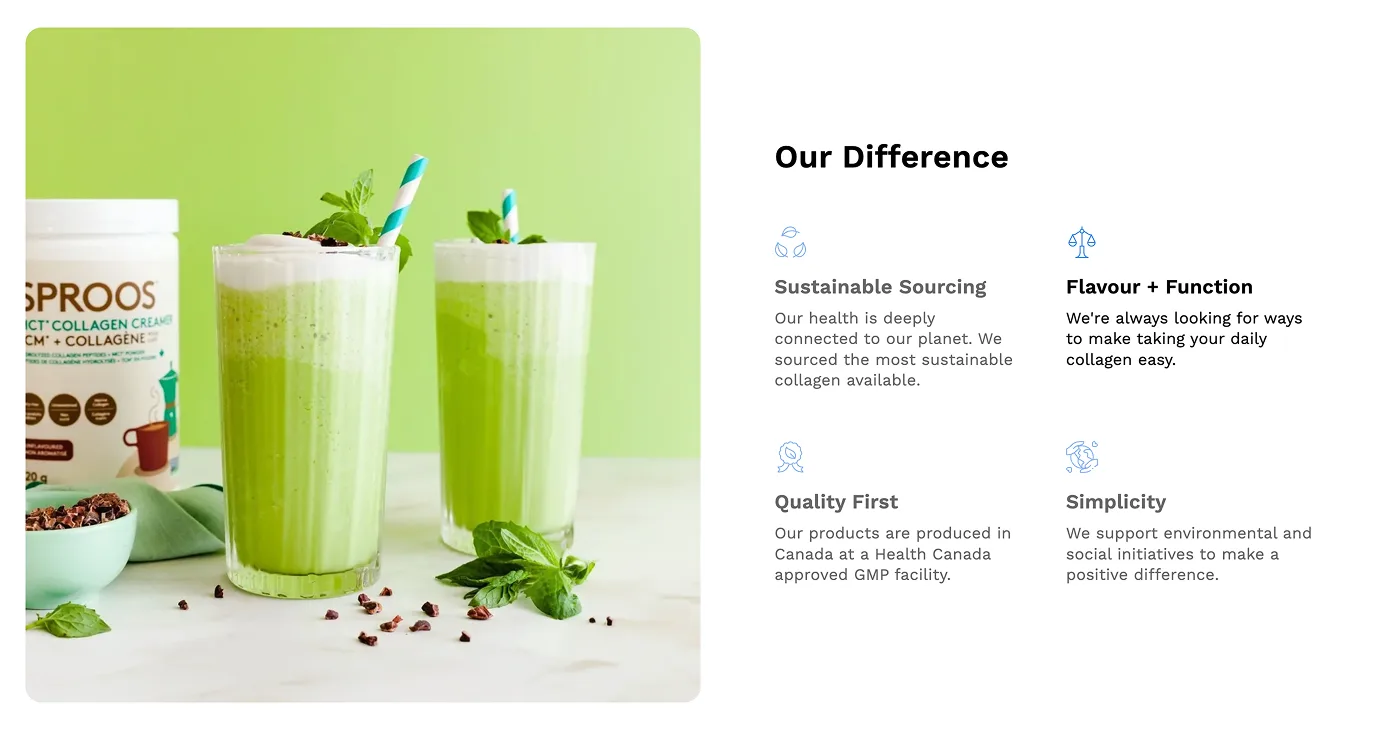
Feature Lists help visitors understand the practical reasons to consider your products. Choose two or three details that are true and relevant to the purchase.
Examples:
Wellness: Guided prompts · Undated pages · Portable size
Food and drinks: Resealable pack · Brewing instructions · Caffeine-free option
Fashion: Adjustable straps · Side pockets · Machine-washable fabric
Specific details are more useful than broad claims. “Adjustable chain length” tells a jewellery shopper more than “Premium quality.” If a benefit needs a demonstration or a longer explanation, use Media and text instead.
See theFeature Lists guide.
✅ Add reassurance through real customer feedback
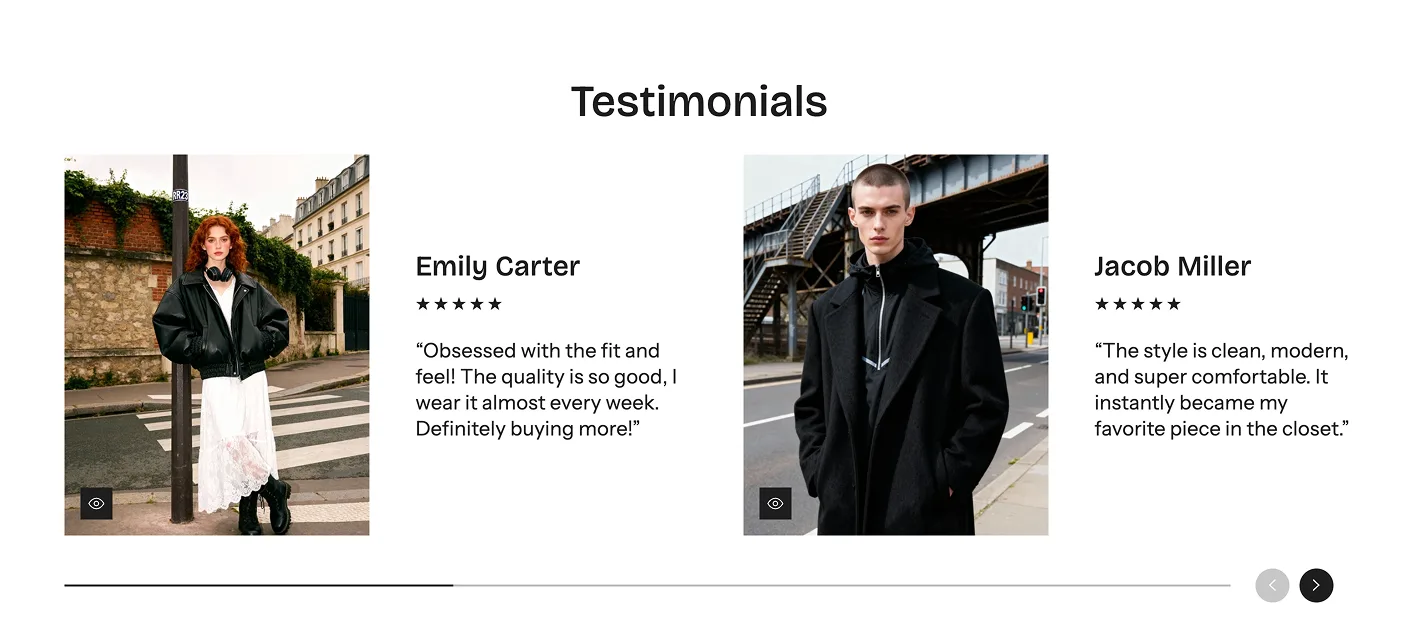
Testimonials help shoppers imagine what it is like to use or wear your products. Choose comments that answer a question someone may have before ordering.
Examples:
Fashion: “The size guide was accurate and the sleeves are the right length.”
Beauty: “The texture feels light and works well under makeup.”
Food and drinks: “The sampler helped me find a blend I actually enjoy.”
Keep reviews accurate and attributed. Place them after the products or benefits they support. If you do not have customer feedback yet, use this space for helpful product information and add Testimonials later.
🧵 Explain your story, process, or product details
Media and text works best when an image helps explain the message. Show a product being used, a close-up of materials, or a detail from your making process.
Rich text works when a short written explanation can stand alone. Use it to explain why you created a range, how you choose ingredients, or what your brand believes.
Examples:
Food and drinks: Show how to prepare a tea blend.
Accessories and jewellery: Show the finish and craftsmanship of a piece.
Wellness: Explain how a product fits into a simple daily routine.
Keep the section about one topic. Use a short headline, a few sentences, and one relevant link.
🧠 4. Choose your section order
Each section answers a shopper question:
| Section | Purpose |
|---|---|
| Slide show | Explain what you sell. |
| Collection list | Help visitors choose a category. |
| Featured collection | Show products worth exploring. |
| Featured product | Give one item more attention. |
| Feature Lists | Explain practical benefits. |
| Testimonials | Add customer reassurance. |
| Media and text or Rich text | Give useful context. |
You can add a newsletter signup after these sections when you have a clear reason for visitors to subscribe. For example, food and drinks brands can share recipes, while fashion brands can share new collection updates.
You do not need all eight sections.
Suggested starting points:
| Option | Use and details |
|---|---|
| Wellness | Slide show → Featured product → Feature Lists → Media and text → Testimonials |
| Beauty | Slide show → Collection list → Featured collection → Feature Lists → Testimonials |
| Fashion | Slide show → Collection list → Featured collection → Media and text → Testimonials |
| Food and drinks | Slide show → Featured collection → Feature Lists → Media and text → Testimonials |
| Accessories and jewellery | Slide show → Collection list → Featured product → Media and text → Testimonials |
Check before you finish
Preview the page on your phone:
- the first button leads to the promised products
- collection names match their links
- every section adds useful information
Remove anything that repeats an earlier message.
✨ Wrapping it up: choose clarity over volume
For more setup details, see theFlawless section guide. When your homepage is ready,make your product pages easier to shop.
Get the next teardown in your inbox.
One email a month: new writing, release notes and the occasional look inside how Flawless is built.