


Product Pages That Help Customers Buy
Sep 8, 2026 · 7 min read · By Ascend Themes
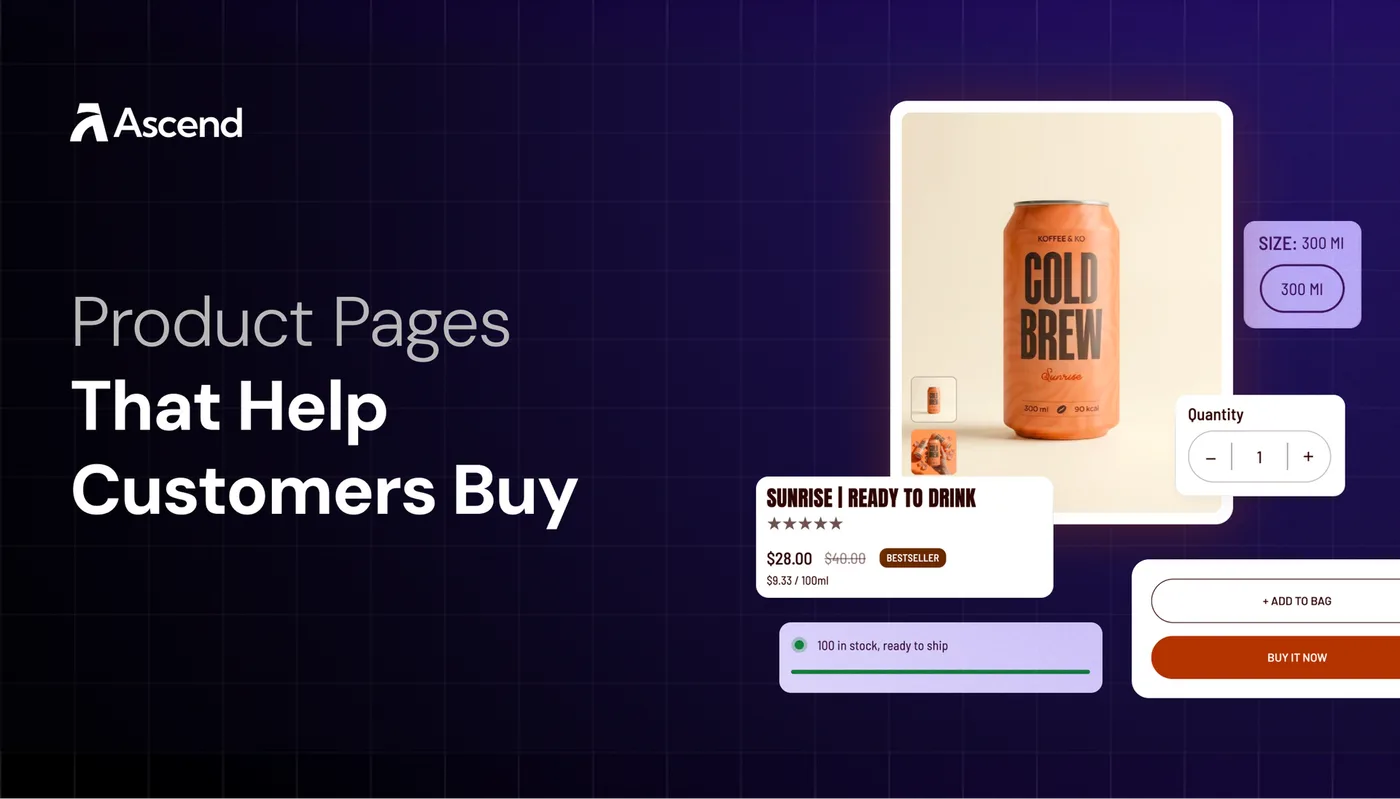
The Product information section is the decision panel on a Flawless product page. It can show the vendor, title, rating, price, variants, inventory, purchase buttons, pickup details, badges, offers, guides, and more. The best setup gives shoppers the next useful answer at the right moment.
Your starting point
Start with the blocks that help someone choose and buy, then add supporting information where it removes a real question.
🧭 1. Arrange and identify the product
Open the theme editor and go to your product template. Add or reorder blocks inside the Product information section so the page follows a simple decision path:
- What is this product?
- Which version is right for me?
- Can I trust the purchase?
- How do I add it to my cart?
- What should I know before it arrives?
Flawless lets you show or hide many blocks individually. You do not need every block on every product. Use the same basic order across your store, then make small changes for each preset and product type.
🏷️ Identify the product with Vendor Name, Product Title, Rating, and Price
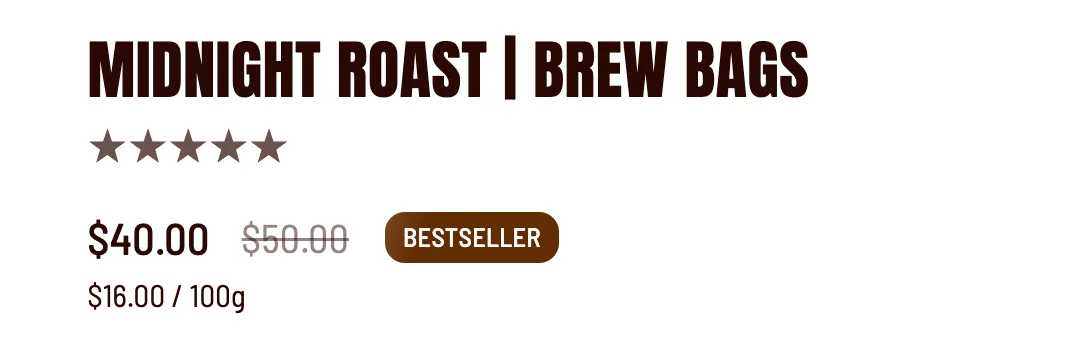
These blocks identify the product. Vendor Name helps stores that carry several labels. Product Title names the exact item.
Price shows the current cost, including a sale price when one is set in Shopify. Rating can display reviews supplied by a compatible review app.
Use a short, specific title that matches how customers search. Keep the rating close to the title when you have genuine reviews and enough review volume to make the signal useful. If your store has one in-house brand, Vendor Name may add little and can be hidden to keep the heading area lighter.
For the five Flawless presets:
| Option | Use and details |
|---|---|
| Wellness | name the product, format, and quantity, such as “Daily Electrolytes, 30 Sachets.” |
| Beauty | include the product type and key use, such as “Barrier Repair Moisturiser.” |
| Fashion | include the garment type and distinguishing detail, such as “Linen Overshirt, Sand.” |
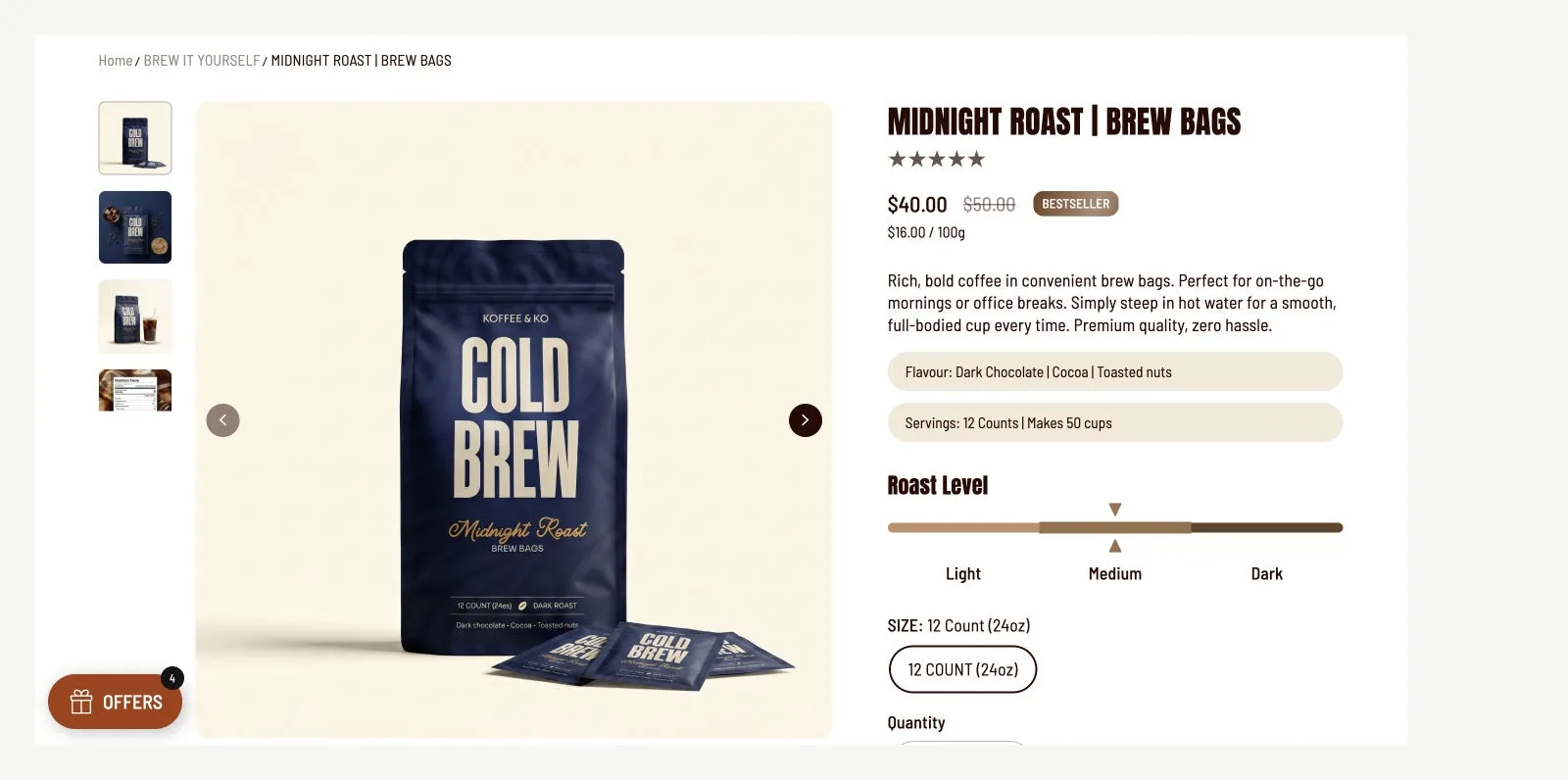
| Food and drinks | make flavour, roast, size, or pack count clear. |
| Accessories and jewellery | identify the style, material, or finish without making the title a paragraph. |
🎨 2. Make options and purchase controls clear
Variant Picker controls how options such as size, colour, scent, or pack are shown. Use Pills for a short list that benefits from quick comparison. Use Dropdown when there are many values or long option names.
Enable Show swatches when colour or pattern can be understood visually, and make sure the swatches match the actual variants.
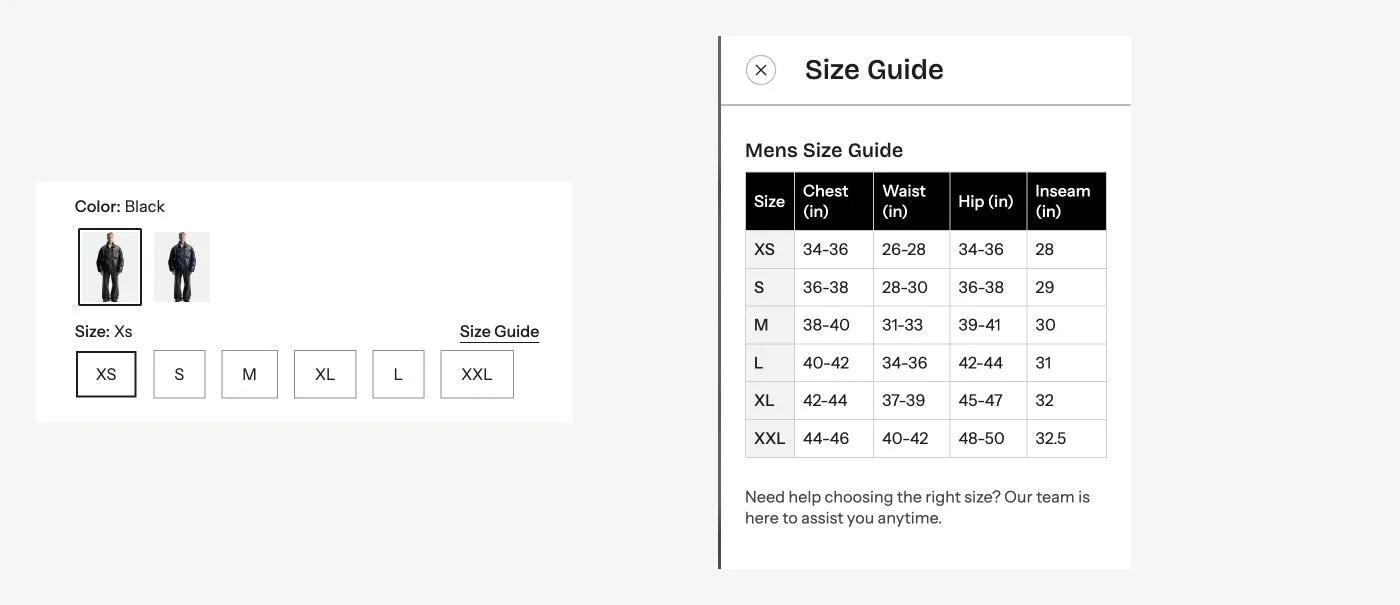
The Guide drawer places a size guide or other helpful page or image beside the relevant option. Its option name must match the product option exactly, such as Size. This keeps fit information close to the decision without turning the main product panel into a wall of text.
Example: A fashion product can show colour pills, a size picker, and a “Size guide” drawer. A beauty product can use a scent or shade picker with a short explanation of the difference between each option.
📦 Set expectations with Inventory Status, Quantity Selector, and Pickup Availability
Inventory Status or Stock Alert can show a low-stock message or status bar when the quantity crosses your chosen threshold. Use it to set an honest expectation about availability. Do not use a low-stock message as decoration or set a threshold that does not match your inventory.
Quantity Selector is useful for consumables, food, drinks, and products commonly bought in multiples. It may be unnecessary for a considered purchase where most customers buy one item. Pickup Availability belongs near the purchase controls when you offer local pickup and the information is kept current by Shopify.
🛒 Put Buy Button and dynamic checkout in the obvious place
Buy Button is the point where product research becomes an action. Place it after the title, price, options, and any essential guide. Flawless can also show dynamic checkout buttons for customers who prefer a faster payment path.
Show payment icons only when they represent methods you actually accept.
On mobile, check that the button remains visible after a shopper selects a variant. A clear button label, enough contrast, and a visible unavailable state are more useful than extra promotional copy around it.

🧾 3. Add supporting and specialist information
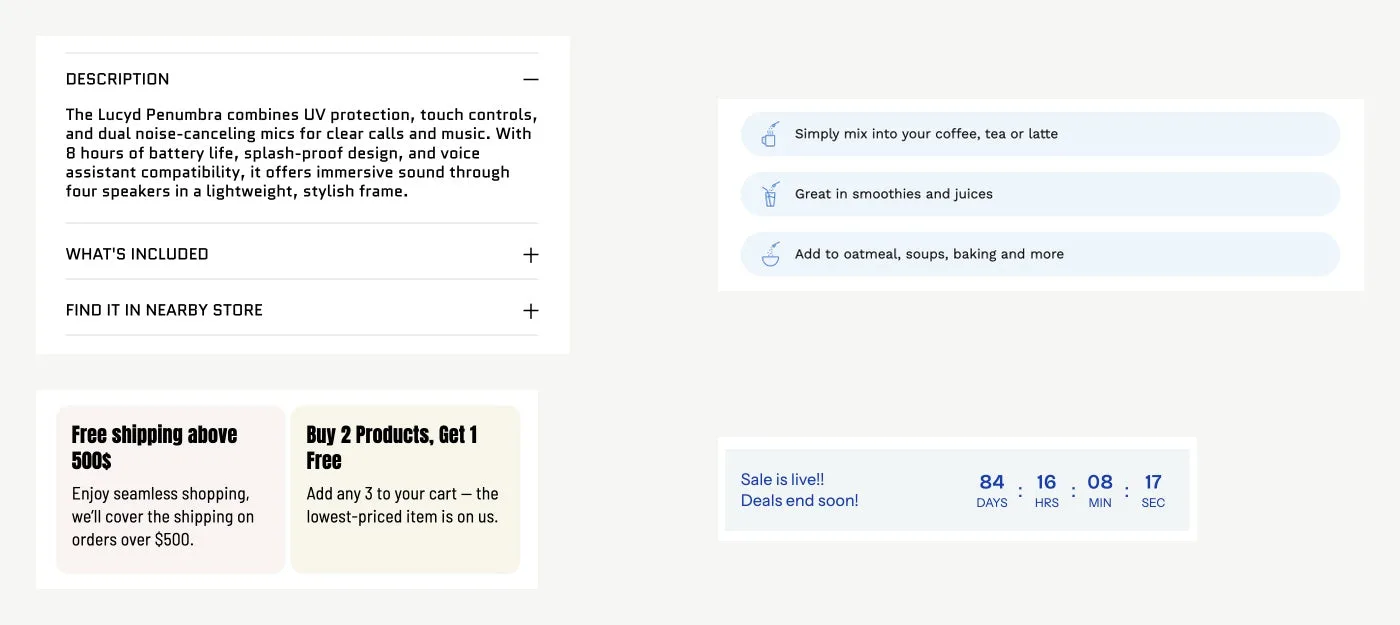
Collapsible Text is suited to information shoppers may need but do not need to read before choosing: ingredients, care instructions, shipping details, returns, or specifications. Give each row a direct heading, such as “Materials and care” or “How to use.” You can add the content directly or connect it to a Shopify page.
Icon Badges can highlight a small number of real product qualities. Use up to a few meaningful badges, such as “Vegan,” “Made to order,” “Dermatologist tested,” or “Free delivery.” Keep the icon and label easy to scan, and avoid repeating the same claim in the title, badge, and offer.
Offer Highlight blocks work for clear, current benefits such as a bundle saving, gift with purchase, or free shipping threshold. Include the conditions so the value is understandable before checkout.
Sale Countdown is useful for a genuine promotion with a fixed end time. Place it near the offer and state what ends, such as “15% off ends tonight.” Hide the countdown when the sale ends.
A timer without a real deadline weakens trust.
🧪 Use specialist blocks when they answer a product question
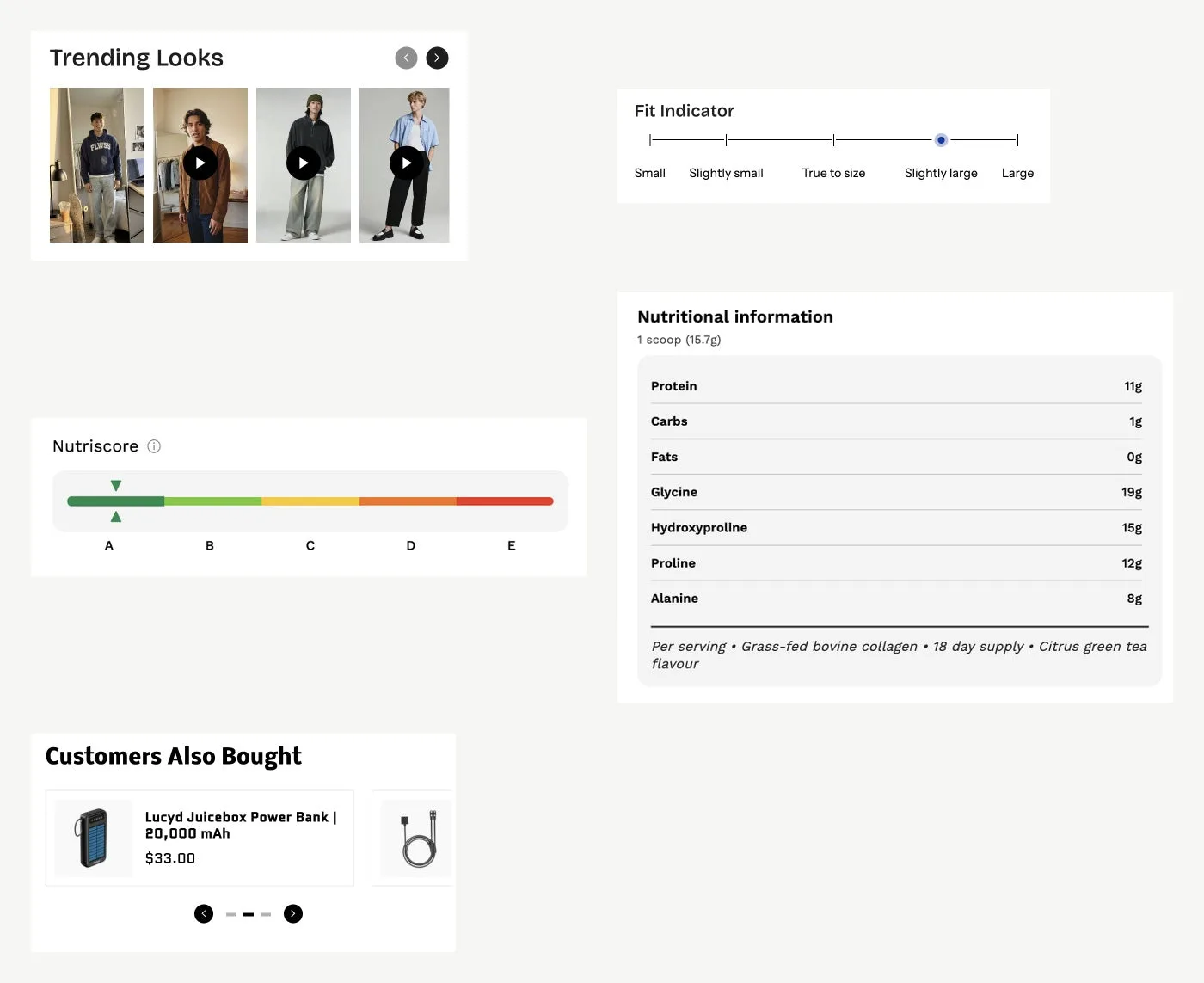
Some Product information blocks solve a specific merchandising problem:
| Option | Use and details |
|---|---|
| UGC Video | show a short customer or creator video that demonstrates the product in use. Use it when seeing the product used adds confidence, and keep it close to the product story rather than leading with unrelated clips. |
| Fit Guide | show a visual indication of whether a garment runs small, true to size, or large. Place it beside size choices. |
| Nutri Score | give food, drinks, or supplements a quick nutritional rating that shoppers can understand at a glance. |
| Nutrition Info Table | show detailed nutrition facts in a formatted table. Make it expandable when the table is long. |
| Complementary Products | show products assigned through Shopify Search and Discovery, such as a filter for a wellness bundle or a case for an accessory. |
| Line Item Property | collect personalisation text, gift messages, or an order note before adding the product to the cart. |
| Share | give customers a way to share the product when social discovery is part of your buying journey. |
| Custom Liquid | add a store specific integration or content snippet when the standard blocks cannot provide it. |
Add these blocks only where the product data is maintained. A blank guide, generic custom code, or irrelevant recommendation makes the section harder to trust.
🧩 4. Adapt the setup to your preset
Use the preset as a starting point, then choose blocks according to the questions your products create.
| Option | Use and details |
|---|---|
| Wellness | title, rating, price, format or flavour variants, quantity, ingredients in Collapsible Text, and complementary products. |
| Beauty | title, rating, price, shade or scent swatches, Guide drawer for routines or shade help, Icon Badges, UGC Video, and how-to-use content. |
| Fashion | title, rating, price, colour and size options, Guide drawer, Fit Guide, UGC Video, material and care details, and pickup when offered. |
| Food and drinks | title, price, pack or flavour variants, quantity, Nutri Score, Nutrition Info Table, ingredients, storage, and delivery information. |
| Accessories and jewellery | title, price, finish or size options, material and dimensions, care details, personalisation through Line Item Property, and complementary products. |
✅ Check before you finish
Preview a real product on a phone and confirm that:
- title, price, and rating are readable together
- every variant can be selected without confusion
- the Guide drawer opens beside the right option
- inventory, pickup, and offer messages are truthful
- Buy Button stays easy to find after a selection
- long details collapse cleanly
- the next product recommendation appears after the main decision
If a block does not answer a question, support a choice, or remove uncertainty, remove it from that product template.
✨ Wrapping it up: let each block earn its place
A strong product page feels edited. Lead with identity, price, options, trust, and the Buy Button. Add guides, badges, offers, and specialist blocks where they help a shopper decide.
When the order matches the questions your customers actually ask, the product page becomes easier to scan and easier to buy from.
Once your Product information section is clear, use thenavigation setup guideto help shoppers find the right collection next.
Get the next teardown in your inbox.
One email a month: new writing, release notes and the occasional look inside how Flawless is built.